If you can’t find a patient’s records in our Regional Health Information Exchange, you can now search CommonWell and Carequality simultaneously.
Note: This functionality is not available to all participants. If you have questions or are interested in connecting, please contact support@Centralishealth.com.
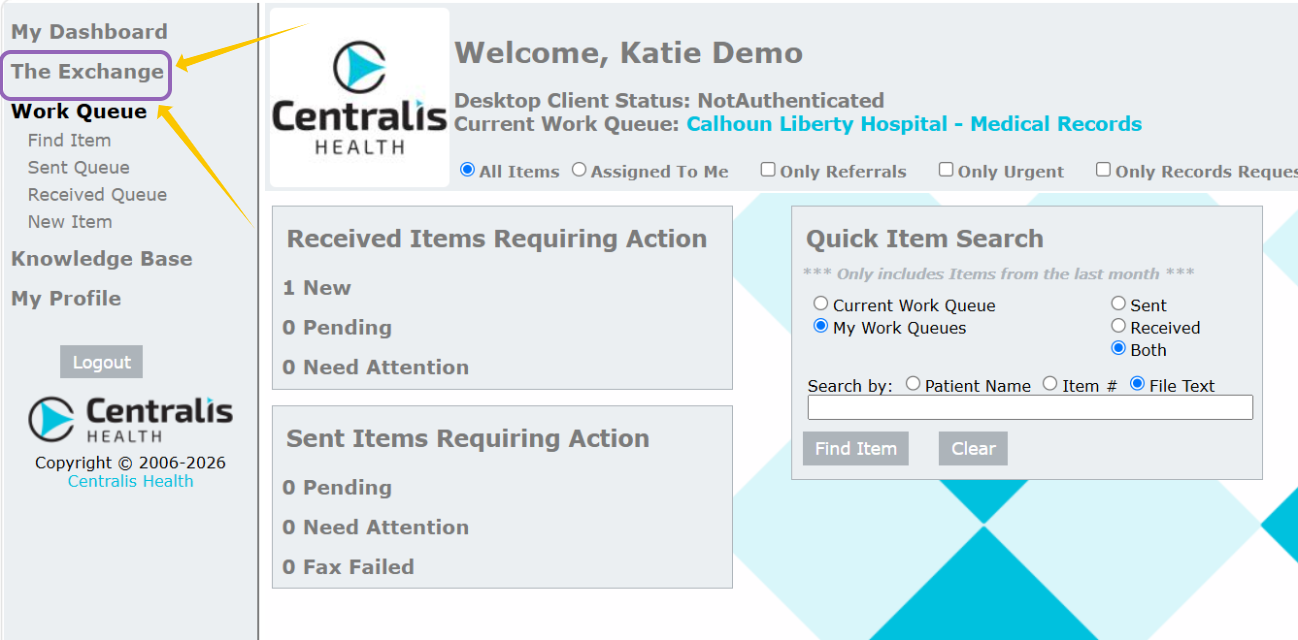
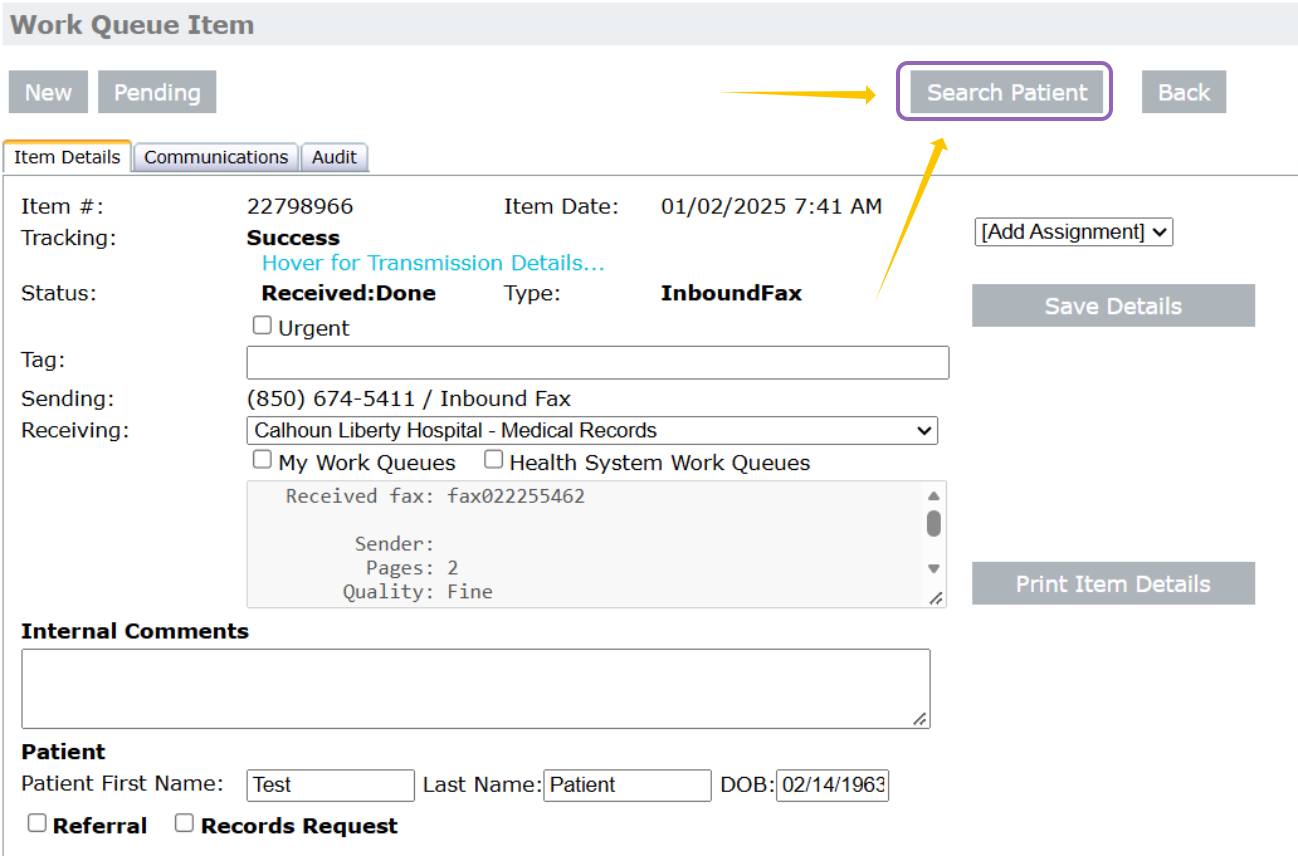
1. After logging in to the Centralis Health secure web portal, you can access the Commonwell exchange by searching for a patient. Select the Exchange button to begin a new search, or select Search Patient from within a work queue item.
2. Enter or confirm the patient’s name and date of birth, then select Find Patient. From the search results, select the correct patient by clicking the blue hyperlinked name.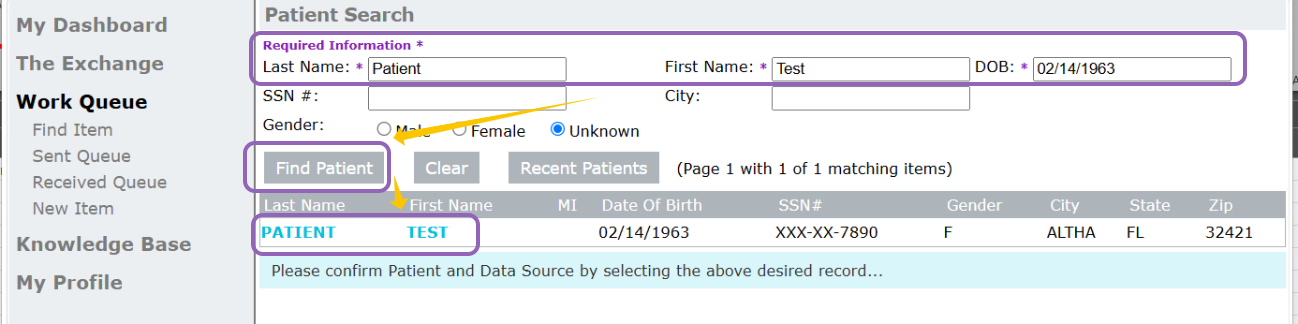
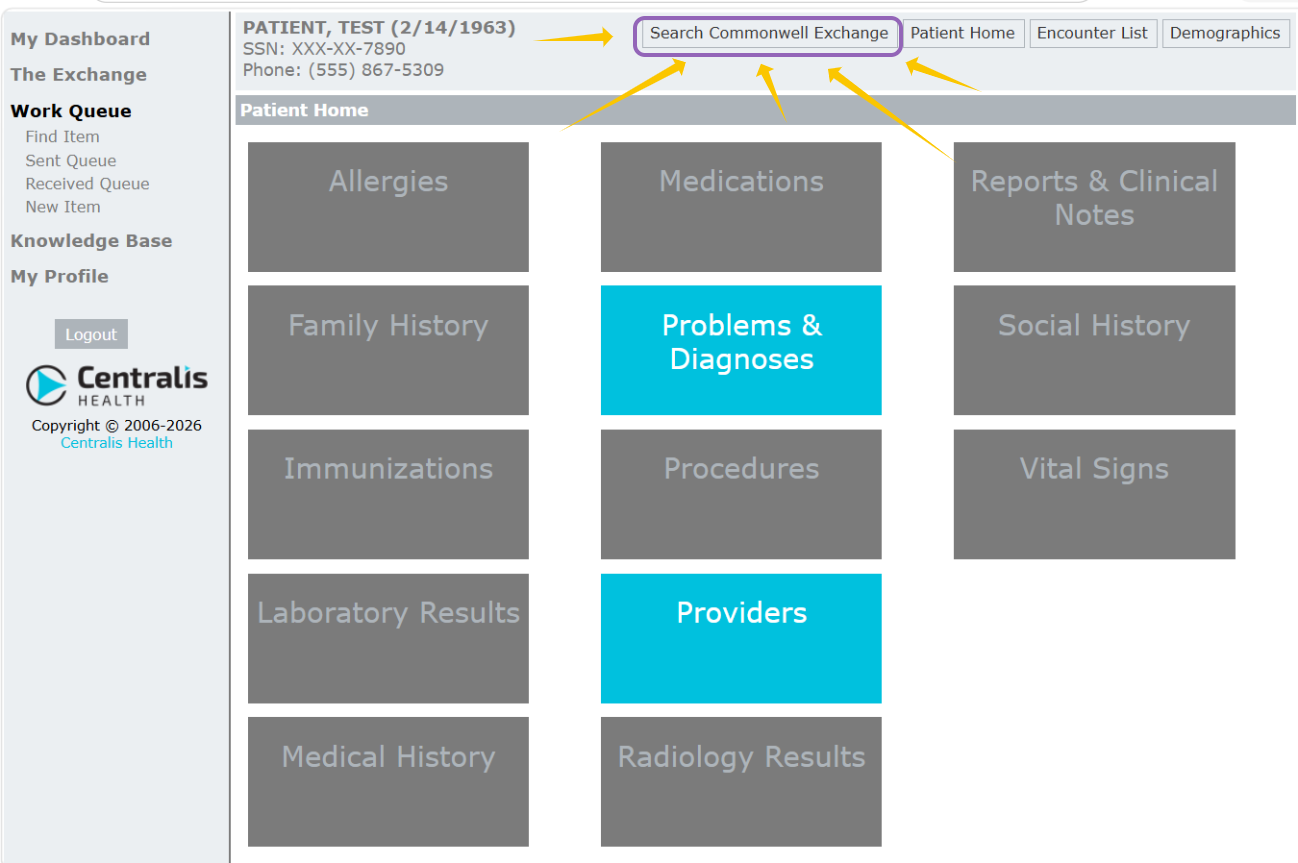
3. After confirming they records you need are not available in the blue boxes from our regional exchange, click on Search Commonwell Exchange.
Note: It might take a moment for the screen to refresh as selecting that button kicks of the search and maybe take up to 30 seconds to populate.
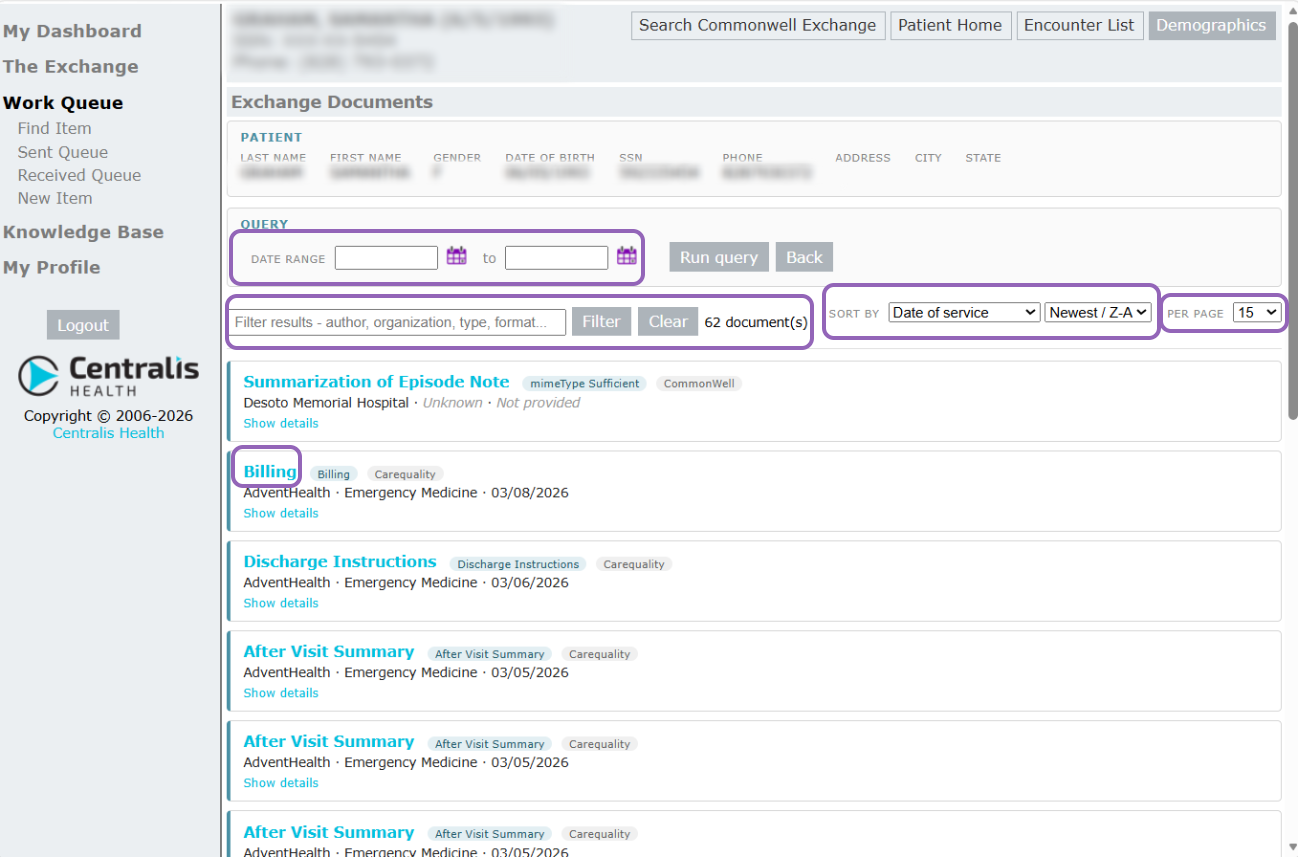
4. After the page refreshes, all available records from providers/organizations within 100 miles of the patient’s home address will appear. You can narrow the results by date range, apply custom filters, change the sort order, and adjust the number of results displayed on the page. When you find the record you want to view, select the blue hyperlinked text. The record will open in a new tab, allowing you to view multiple documents at the same time.
Was this article helpful?
That’s Great!
Thank you for your feedback
Sorry! We couldn't be helpful
Thank you for your feedback
Feedback sent
We appreciate your effort and will try to fix the article